
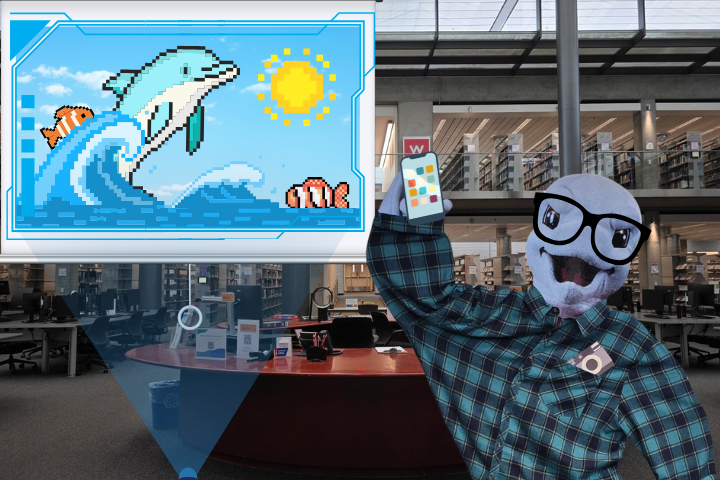
Ekho, the tech-savvy dolphin, educating CI students in the John Spoor Broome Library
Photo and graphic by Dani Ramirez
By Morgan McMurray
Technology plays a huge part in college students’ education. However, many students are unaware of resources offered to them at CI. From enhancing the quality of school projects to building a resume or portfolio, students’ myCI emails and Dolphin IDs grant them access to many useful technology tools. The following are five lesser-known tech resources available to CI students.
CI Virtual Computer Labs (CIVL)
What it is:
The CI Virtual Computer Labs (CIVL) allow enrolled students to access a virtual Windows desktop through any web browser with an internet connection and their myCI email. The virtual desktop includes software that CI has paid licenses for, such as PASCO Capstone, ICM-Pro, SPSS, medInria, Mplus and Positron. Students can also transfer files between the virtual computer and their personal computer, or to an external device like a USB.
When to use:
• Taking a virtual lab class that requires students to have specific software
• An in-person lab period is moved online due to an emergency (like a pandemic or a fire) and the activities of that lab class require specific software to complete
• Needing to access software that CI does not pay individual licenses for, like PASCO Capstone, commonly used in physics classes on campus
• A class uses software that works better on a Windows computer, assuming a student normally uses Apple devices
• Installing course-required software on a personal device is difficult or impossible
How to access it:
Students can access CIVL by visiting https://go.csuci.edu/vdi between the hours of 6 a.m. and 2 a.m. Pacific time. Follow the on-screen instructions for setting up the virtual computer and connect to the device labeled “CIVLStudents-NEW,” logging in with myCI credentials as necessary. For the best experience, use a Chromium-based browser, such as Google Chrome, Microsoft Edge, Opera, Vivaldi or Brave, paired with a fast internet connection. Unlike Firefox and similar browsers, Chromium-based browsers support keyboard shortcuts, like copy and paste, between the virtual computer and the physical computer. The CIVL interface can be easier to use with a larger screen, so make sure to log in on a laptop, or connect to a second display (like a TV) when using it. More information about the software available on CIVL and how to access it is available here.
O’Reilly Media Library
What it is:
The O’Reilly Media Library is a collection of tech-focused and business-focused e-books, audiobooks, articles, courses and videos published by O’Reilly Media. The O’Reilly Media publishing company is a well-established source for instructional resources on a variety of programming languages. More specifically on technology fields such as bioinformatics and cloud computing, how to use enterprise software like Excel and Power BI, preparation for IT certification tests offered by CompTIA, developing soft skills in a professional context and so much more. O’Reilly Media also has an app for Android and iOS, which allows users to download content of any resource from the O’Reilly Media website, so students can read or listen to them offline.
When to use:
• To learn a specific programming language or tech platform for a class
• To learn specific enterprise software or build a portfolio of tech-based projects
• Prepare for an IT certification test by accessing test prep resources
• To learn more about hot-button tech topics like AI, cryptocurrency(blockchain) or quantum computers
How to access it:
To access the web version, visit www.oreilly.com, click on the hamburger menu, represented by an icon with three horizontal lines stacked on top of each other (≡), at the top left of the page and then click on “Sign In” at the bottom of the menu options. Students should enter their myCI email in the first text box and then follow the rest of the on-screen sign in instructions. To access the mobile version, search “O’Reilly Education” in either the App Store or the Google Play Store, download the O’Reilly Media app, and log in with myCI credentials within the app. More information about how to set up the O’Reilly Media app is available here.
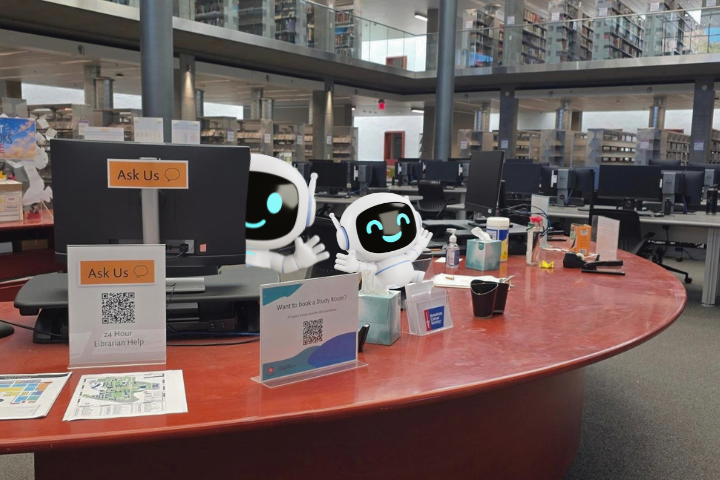
The circulation desk in the John Spoor Broome Library on CI’s campus
Photo and graphic by Dani Ramirez
Professional camera equipment
What it is:
The John Spoor Broome Library offers cameras and accessories to currently enrolled students, which they can check out for a two-week interval. Available cameras are the Nikon Z50 mirrorless camera, the Nikon D7200 DSLR camera, the Insta360 X5, the Canon R500 HD, the GoPro Hero 7 Black and the Panasonic AG-UX90 4k cinema camera. Each camera comes ready to use with a carrying case, memory cards, batteries and chargers. Tripods, monopods, DSLR camera flash units and additional lenses for the mirrorless and DSLR cameras can also be checked out.
When to use:
• To shoot 4K video for a class project or YouTube side hustle, it is best to either use one of the mirrorless cameras or one of the cinema cameras.
• To shoot HD video that is multiple hours long, it is best to use the Canon R500 camcorder. The camcorder can record up to four hours on battery power and indefinitely if it is kept plugged into a power source.
• To take photos or record videos under shallow water, it is best to either use the GoPro or the Insta360 X5.
• To build a photography portfolio, it is best to use a DSLR camera and one or more of the many lenses offered as accessories.
How to access it:
Visit the front circulation desk of the John Spoor Broome Library and check out a camera using an active Dolphin ID card. Students can check out one of each type of camera and up to three total items at a time. Keep in mind, however, that camera availability is more limited toward the end of each semester. Once finished using a camera, find a desktop computer on the main floor of the John Spoor Broome Library to transfer photos and videos from the camera. The library desktops have SD card readers on the bottom edges of their displays and all camera media is stored on its SD card. After transferring the files to a computer, photos and videos can then be uploaded to Google Drive or transferred to an external drive. More information about the camera equipment, check-out policies and current availability can be found here.
CSUCI OnTheHub
What it is:
CSUCI OnTheHub is an online storefront offering individual licenses of popular software at a substantial discount and in some cases, for free. The platform is maintained in partnership with Kivuto, an academic software license management company. A one-year license of Adobe Creative Cloud, SPSS and NordVPN are just some of the software packages available from OnTheHub. OnTheHub also keeps track of users’ order histories so they can easily determine which of their software licenses can be renewed at a discounted price.
When to use:
• Access to Adobe Photoshop, Illustrator, Premiere Pro and/or After Effects, to do some editing on photos or videos taken with one of the camera rentals from the John Spoor Broome Library. A one-year license of the Adobe Creative Cloud Pro is available to CI students for free via OnTheHub.
• Read human-written summaries of popular personal growth-oriented nonfiction titles. A one-year Headway subscription is available to CI students at a 30% discount.
• To use a popular virtual private network (VPN) service. NordVPN licenses are available to CI students at discounts ranging from 31% and 72%, depending on the length of the license and whether the software package includes a password manager or encrypted cloud storage in addition to the VPN.
• Needing specific analytics software (like SPSS, EViews or Minitab) for a class or for work. Before spending hundreds or thousands of dollars on a paid license from the developer’s website, check OnTheHub first to see if discounts are available.
How to access it:
Students should visit http://csuci.onthehub.com/ and log in with their myCI credentials. The front page of OnTheHub displays the offer for an Adobe Creative Cloud license. To find more software, hover over “Students” at the top left of the page and click on one of the options shown in the drop-down menu. Clicking each of the cards in the resulting storefront reveals the price, a description of the software, details of the software’s system requirements, information about discount eligibility and the ability to “Add to cart.” Students can then complete the order and follow the download or activation instructions.
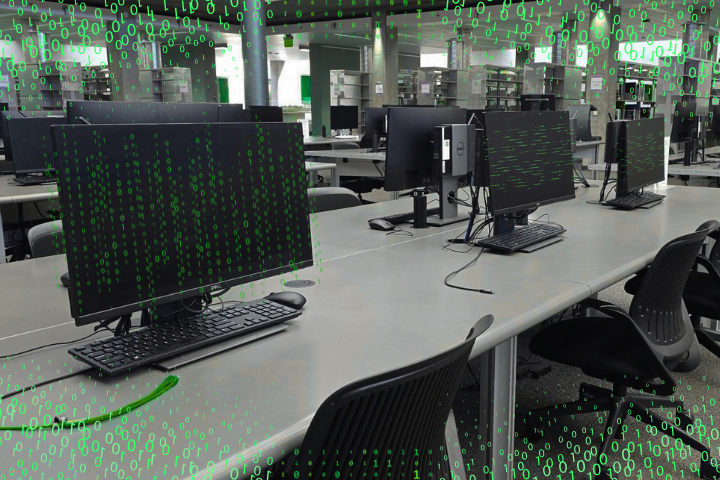
Computers in the John Spoor Broome Library on CI’s campus
Photo and graphic by Dani Ramirez
AI tools: Jobscan and ChatGPT Edu
What it is:
Jobscan is a platform focused on automating the job searching process. Using generative AI, Jobscan can optimize resumes and LinkedIn profiles, generate cover letter drafts for specific positions and recommend jobs based on the experience described in an uploaded resume. Jobscan also includes a job application tracker which helps organize the progression of each job application through categories from “saved” and “applied” to “offer” and “rejected.”
ChatGPT Edu is a version of the popular generative AI tool, ChatGPT, specifically designed for and licensed to current university students and faculty, including those at CI. Unlike the free or individual paid versions of ChatGPT, ChatGPT Edu has significantly higher message limits, access to more advanced features like web browsing and the ability to create custom versions of ChatGPT that are tailored to specific subjects or tasks. Additionally, chats logged in ChatGPT Edu are not used to train OpenAI’s models, lowering the risk of one’s intellectual property being compromised.
When to use:
• To optimize a resume or LinkedIn page to ensure that it passes the application tracking systems of prospective or desired employers
• To apply for positions that could result in interviews
• Help with midterm prep and study plans
• To have text conversations with one’s class notes, by creating custom versions of ChatGPT specifically trained on those class notes, to help retain course knowledge
How to access it:
To access Jobscan, log into myCI and click on the “Jobscan” card. The Jobscan dashboard will open in a new window and all of Jobscan’s available tools can be explored by clicking the options on the left menu.
To access ChatGPT Edu, students should visit chatgpt.com and log in with their myCI email, using @csuci.edu instead of @myci.csuci.edu. Students who have used ChatGPT with a separate free account may be prompted to import their existing chat logs and other data into ChatGPT Edu. Whether or not a student chooses to import their existing data does not change the core functionality of the platform.
The CI Virtual Computer Labs, O’Reilly Media Library, professional camera equipment offered by the John Spoor Broome Library, CSUCI OnTheHub and AI tools, specifically Jobscan and ChatGPT Edu, are five little-known tech resources offered by CI to its current students. These resources can support coursework, creative projects and career preparation, making them valuable assets in any college education.
